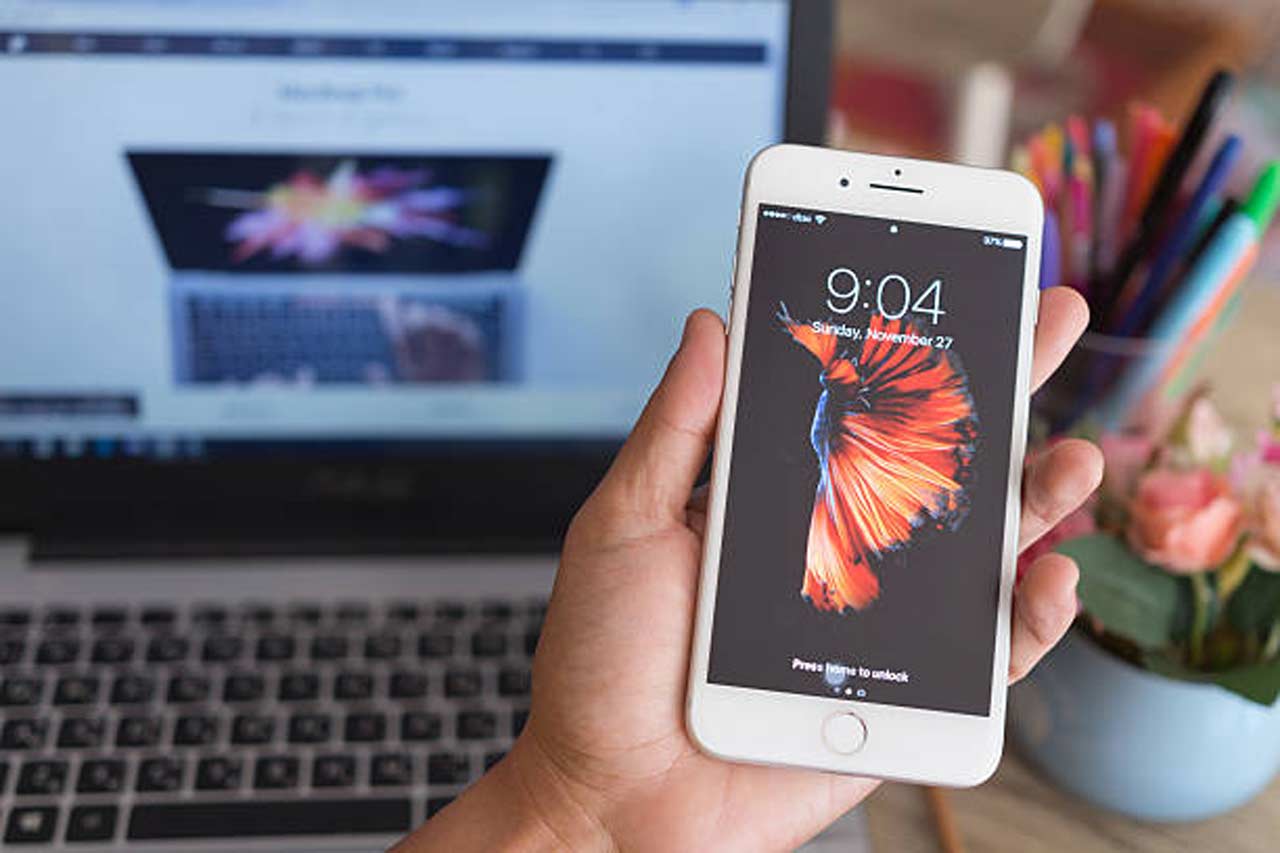
Connecting your iPhone to a Windows PC used to be a frustrating task, filled with uncertain steps and limited options. Through https://aka.ms/startLinking , Microsoft has simplified this process so that you can sync notifications, messages, photos, etc. directly between your iOS device and your Windows desktop.
What is linking https://aka.ms/startLinking?
https://aka.ms/startLinking is an official and secure method that allows pairing iPhones and iOS devices with Windows computers. Using the Phone Link app, the two-way mobile-to-desktop experience will enhance productivity by enabling people to use their devices simultaneously, eliminating the need to alternate between them.
Step-By-Step: Pair iPhone/iOS Device with Windows
Access the Portal
Visit https://aka.ms/startLinking in your browser. This URL forwards you to Microsoft’s pairing instructions.
Install Phone Link App
Download the Phone Link app on your iPhone from the App Store.


Launch on Your PC
Open the Phone Link app on Windows. Ensure that both gadgets have an active internet connection.
Sign into Microsoft account
Auto configuration can be easily achieved by logging in to the same Microsoft account on both devices.
Complete Pairing
Approve the notifications, messages, contacts, photos, and any other content you prefer to link, and ensure you follow the prompts.
Experience unified control
Pair and read text messages, see notifications, and transfer photos all through your desktop.
Troubleshooting Common Problems
Certain users face difficulties even with a successful installation. These are the ways to solve these common problems:
- Devices That Cannot Pair: Ensure both the iPhone and PC are running the latest operating system and are connected to the same network. Shut down both the machines in case of need.
- Messages Not Syncing: Ensure that Message sync has been enabled in the Phone Link app setting on the phone.
- Notifications Not Showing: When notifications fail to be visible, ensure that notification permission is enabled and Focus modes are turned off or Do Not Disturb is off your iPhone.
- Photo Transfer Errors: Photo permissions should be enabled, and free space should be provided in your PC.
Benefits of Using https://aka.ms/startLinking
- Unified Messaging: View and respond to texts while working—no phone juggling.
- Instant File Transfer: Safely transfer photos and documents between Windows and iPhone.
- Centralized Notifications: Stay informed about all notifications from a single point.
- Simple Call Handling: You can take incoming calls and also reject them directly through the PC.
Real World Use Case
Sarah, a marketing expert, transferred to the Phone Link experience by visiting https://aka.ms/startLinking to manage client communications while working on large graphics projects. She responded to texts and took calls using her desktop, eliminating the need to stop work every few moments to check her phone. This saved her plenty of time and made multitasking a breeze.
Frequently asked questions (FAQs)
Q: Is https://aka.ms/startLinking compatible with any iPhone model?
A: The Phone Link app is compatible with iOS 14 and above, i.e., most recent iPhones will work with it.
Q: Is my data confidential in the process of syncing?
A: Yes, Microsoft applies encrypted communications protocols to protect your data when communicating on any occasion.
Q:How do I use https://aka.ms/startLinking on multiple devices?
A: Currently, pairing is intended for one iPhone per PC, but you can unlink and reconnect different devices as needed.
Conclusion
When you wish to get rid of tech headaches and streamline digital processes, https://aka.ms/startLinking can help. The procedure is efficient, consistent, and one that accommodates efficiency-minded users. Experience it today and change the way you experience cross devices.