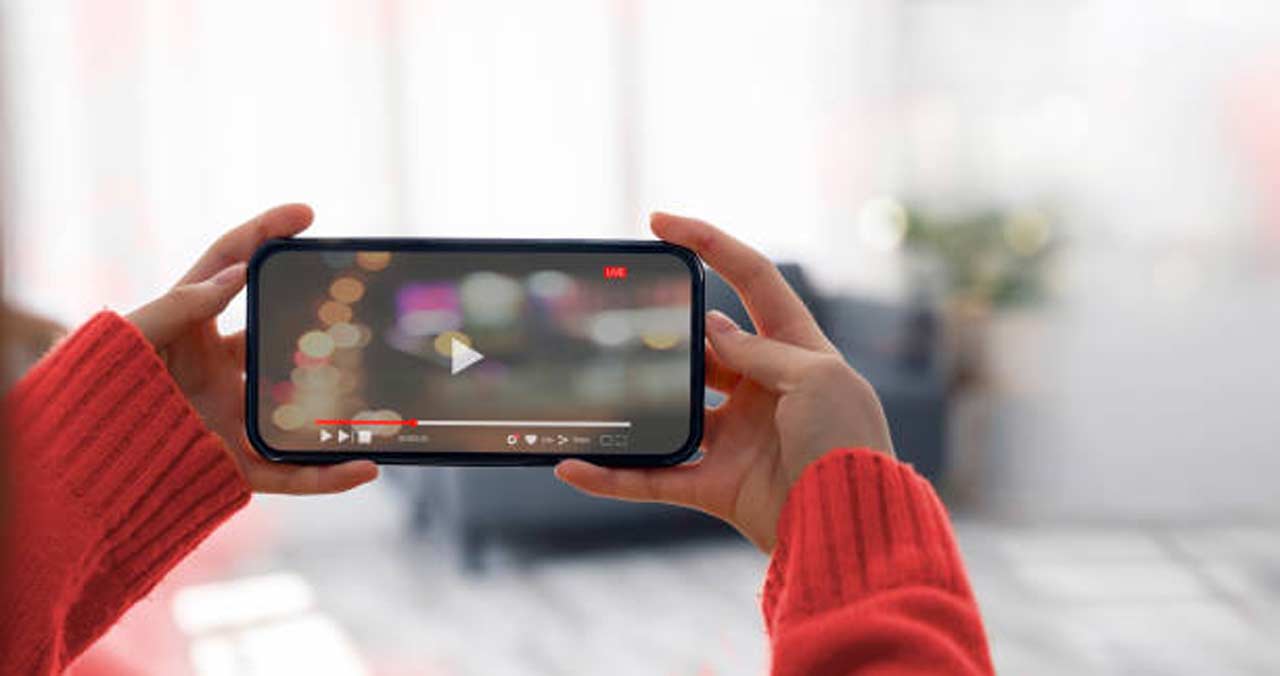
 A printed invitation tells people when and where to show up. A well-crafted video invitation makes them genuinely excited to be there. Whether you are planning a wedding, birthday celebration, corporate event, baby shower, or graduation party, a video invitation creates an emotional impression that a card or email simply cannot match. The challenge for most people is that creating a polished video with professional voiceovers and smooth transitions has historically required technical skills and expensive software. Today, a new generation of browser-based tools makes the whole process accessible to anyone, regardless of design or editing experience, and this guide will walk you through exactly how to get the most out of them.
Why Video Invitations Have Become the New Standard
There is a reason video invitations have grown from a novelty to an expectation across a wide range of events. In a world where people are bombarded with text-based notifications and emails every day, a short, well-produced video cuts through the noise in a way that static content simply does not. Video communicates tone, atmosphere, and personality in ways that words on a page cannot. A lively birthday invitation set to upbeat music with animated transitions tells guests something about the energy of the event before they even arrive.
The practical case is just as strong as the emotional one. Video invitations can be shared instantly across social media, messaging apps, and email. They do not require printing, postage, or lead time. They can be updated or resent if event details change, and they reach guests wherever they are. For larger events or those with geographically dispersed guest lists, a video invitation ensures everyone receives the same high-quality experience regardless of where they live.
Adding voiceover and transitions elevates a basic video invitation from a simple slideshow to something that feels genuinely crafted and intentional. A warm recorded voice reading the event details adds a personal touch that text overlays alone cannot replicate, and smooth, well-chosen transitions give the video a sense of flow and polish that holds viewer attention from start to finish.
What to Look for in an Invitation Video Maker
Before exploring tips and techniques, it helps to understand the features that separate a capable tool from a limited one. Not every online video maker is equally suited to invitation creation, and knowing what to prioritize will help you choose wisely.


- Voiceover recording or upload support: The tool should either allow you to record a voiceover directly in the browser or upload a pre-recorded audio file and sync it to your video timeline.
- Transition library: Look for a range of transition styles beyond a basic cut or fade. Slide, zoom, dissolve, and wipe transitions each carry a different visual energy that can complement different event types.
- Event-specific templates: Templates designed for invitations, not just generic video formats, will have the right pacing, structure, and layout for communicating event details clearly.
- Text animation options: Animated text overlays that introduce event details like date, time, and venue in a dynamic way elevate the visual quality of the final product.
- Music and audio controls: Background music with independent volume control, distinct from a voiceover track, is essential for creating a layered, professional-sounding result.
- Easy sharing and export: The finished video should be downloadable in common formats and shareable via a link, making distribution across platforms simple and fast.
- Mobile-optimized output: Many guests will view your invitation on a smartphone, so the tool should produce output that looks great on vertical or square formats as well as landscape.
With these criteria in mind, evaluating any tool becomes a much more structured process.
10 Tips for Creating Invitation Videos With Professional Voiceovers and Transitions
1. Plan Your Script Before You Record a Single Word
The most common voiceover mistake is recording off the cuff and then trying to fit the result to the video. The result is almost always too long, awkwardly paced, or missing key details. Before you open any video tool, write out the complete script for your voiceover. Every word you intend to say should be on paper first.
A well-written invitation voiceover script covers the essential information, which is who is hosting, what the event is, when it is happening, where it is, and any relevant details like dress code or RSVP instructions, and does so in a warm, appropriately toned way that matches the event. For a formal wedding, the language should be gracious and deliberate. For a casual birthday party, it can be energetic and playful. Reading your script aloud before recording is a simple step that catches awkward phrasing, reveals where the pacing drags, and ensures the whole thing fits the length of your video.
2. Record Your Voiceover in a Quiet, Controlled Environment
Audio quality has an outsized impact on how professional a video invitation feels. A voiceover recorded in a noisy room with an echo or background hum will undermine even the most polished visual design. Before you record, find the quietest space available to you, close windows and doors, turn off fans and air conditioning units, and put your phone on silent.
If you are recording with a laptop or computer microphone, position yourself close to the device and speak clearly and consistently. Avoid recording in large, empty rooms where sound bounces. Soft furnishings like rugs, curtains, and upholstered furniture naturally absorb sound and reduce echo. A closet full of hanging clothes is genuinely one of the best makeshift recording environments available in a home setting because the fabric absorbs reverberation from all sides.
3. Use Adobe Express to Build and Customize Your Invitation Video
For an all-in-one tool that handles templates, text animation, music, transitions, and sharing in a single browser-based environment, the video invitation creator within Adobe Express is a strong starting point for any event type. The platform offers purpose-built invitation templates that are already structured around the key elements of a great video invite, including animated text reveals, event detail formatting, and visual pacing designed to hold viewer attention.
Adobe Express makes it easy to personalize every aspect of your invitation video, from the font and color choices to the background visuals and music selection. You can upload photos and video clips from your own library to make the result feel personal and specific to your event rather than generic. For anyone who wants to produce something that looks genuinely polished without spending hours learning a complex interface, it delivers a meaningful combination of quality and speed. The finished video can be shared as a download or directly via a shareable link, making distribution to guests straightforward.
4. Match Your Transition Style to Your Event Tone
Transitions do more than move the viewer from one clip to the next; they communicate mood and energy. A hard cut says something different from a soft fade, and a dynamic zoom says something different from a gentle slide. Choosing transitions intentionally, rather than applying them randomly, is one of the simplest ways to make your invitation video feel cohesive and professionally produced.
For formal or elegant events like weddings, anniversary dinners, or corporate galas, soft fades and dissolves create a sense of grace and continuity. For energetic, celebratory events like milestone birthdays, graduation parties, or themed celebrations, livelier transitions like slides, zooms, or flips can amplify the excitement. A consistent approach to transitions throughout the video, rather than a different effect between every clip, will always look more intentional than a mix of unrelated styles applied without a clear rationale.
5. Layer Background Music Under Your Voiceover Carefully
Background music adds emotional texture to a video invitation, but it has to be balanced carefully against a voiceover track. If the music is too loud, it will compete with the spoken words and make the invitation difficult to understand. If it is too quiet, it will feel like an afterthought rather than a meaningful layer of the experience.
As a practical starting point, set your background music volume to roughly 20 to 30 percent of its maximum level when a voiceover is playing over it. Some tools allow you to automate volume ducking, where the music automatically lowers when speech is present and rises when there is no voiceover. If that feature is available in your chosen tool, use it. It produces a more natural-sounding result than a single fixed volume level throughout the entire video.
6. Keep the Total Video Length Under 90 Seconds
The most effective invitation videos are short enough to hold attention all the way through and long enough to convey the event details with personality. For most event types, a finished video in the range of 45 to 90 seconds hits that balance well. Videos shorter than 30 seconds often feel rushed; videos longer than two minutes begin to lose engagement before the key information has been communicated.
Your voiceover script is the most useful tool for managing length. If reading your script aloud at a natural pace takes longer than about 75 seconds, it needs to be trimmed. Every sentence that does not directly contribute to the tone or the essential event details is a candidate for removal. The discipline of writing a tight script before recording saves you from the much harder task of cutting a recorded voiceover after the fact.
7. Use Animated Text Overlays to Reinforce Key Details
Even when a voiceover is present, animated text overlays that display the event date, time, and location serve an important function. Many viewers will watch the video without sound, particularly if they receive it as a social media post or a message notification. Text overlays ensure that the core information reaches everyone regardless of how they are viewing the content.
Beyond accessibility, animated text adds visual dynamism to the video. A date that types itself onto the screen or a venue name that fades in with elegant timing creates visual interest and reinforces the professionalism of the overall production. Most good invitation video tools offer a range of text animation styles; choosing one that complements your transition style creates a consistent visual language throughout the video.
8. Choose Background Visuals That Complement the Event Theme
The visual background of your invitation video sets the aesthetic context for the entire piece. Stock footage of soft-focus florals, elegant architectural details, outdoor landscapes, or abstract motion graphics can each communicate a very different event atmosphere. Choosing visuals that feel consistent with the theme and formality of your event makes the invitation feel deliberately designed rather than assembled from random available assets.
If you have your own photos or short video clips related to the event or venue, using them in the background is even more powerful because it gives guests a preview of the specific environment they are being invited into. A brief clip of the venue space, a detail shot of the decorations being set up, or even a meaningful location related to the guest of honor adds a layer of authenticity and warmth that stock footage cannot replicate.
9. Add a Clear Call to Action at the End
Every invitation, video or otherwise, needs to tell the recipient what to do next. Your video invitation should end with a clear, visually prominent call to action that tells guests how to RSVP, where to get more information, or what to do if they have questions. This might be an email address, a phone number, a website link, or a simple instruction like “RSVP by [date] to [contact].”
Do not assume that guests will scroll past the video to find RSVP information in a caption or accompanying message. Embedding the call to action directly into the final seconds of the video, both as an animated text overlay and as part of the voiceover, ensures that no one misses it. Ending with a warm verbal close in the voiceover, such as “We cannot wait to celebrate with you,” adds a personal finish that leaves guests with a positive emotional impression.
10. Test the Finished Video on Multiple Devices Before Sending
Before you distribute your invitation video to guests, watch it on at least two different devices: ideally a desktop or laptop and a smartphone. Pay attention to whether the text overlays are legible at mobile screen sizes, whether the audio levels feel balanced in both environments, and whether the overall video quality holds up at different screen resolutions.
This testing step catches issues that are easy to miss when you are reviewing your work inside the editing tool itself. A font that looks clear on a large monitor may be difficult to read on a small phone screen. Music that sounds well-balanced through speakers may overpower the voiceover through earbuds. Catching these issues before distribution, rather than after, ensures that every guest receives the best possible version of your invitation.
A Step-by-Step Workflow for Your Invitation Video
If you are starting from scratch, this workflow brings all of the above tips together in a practical sequence:
- Define the event details: Confirm the date, time, venue, dress code, RSVP deadline, and host name before you begin.
- Write the voiceover script: Draft every word you plan to say. Read it aloud, time it, and revise until it fits within 75 seconds and covers all key information.
- Gather your visuals: Collect any personal photos, video clips, or venue images you want to use. Identify the visual theme and mood you want to establish.
- Choose a template: Open your video tool and select an invitation-specific template that matches your event tone. Customize colors, fonts, and layout.
- Record or upload your voiceover: In a quiet space, record your script using a clean microphone setup, or record in advance using dedicated audio software and upload the file.
- Add transitions: Apply a consistent transition style between clips that matches your event energy.
- Layer in background music: Set music volume to sit comfortably beneath the voiceover, roughly 20 to 30 percent.
- Add and animate text overlays: Include date, time, venue, and RSVP information as animated text elements.
- End with a call to action: Ensure the final frame includes clear RSVP or contact information.
- Preview, test, and export: Watch the full video, test on multiple devices, and export in the appropriate format for your distribution channels.
Frequently Asked Questions
1. Do I need any special equipment to record a voiceover for an invitation video?
You do not need professional audio equipment to record a usable, polished voiceover. The microphone built into a modern laptop or smartphone is capable of producing good results when used correctly in the right environment. The most important factor is not the hardware but the recording environment, specifically the absence of background noise and echo. That said, if you want a step up in audio quality without a large investment, an entry-level USB condenser microphone connected to a laptop makes a noticeable difference in clarity and warmth. For beginners who want to record, edit, trim, and clean up their voiceover audio before importing it into a video tool, Audacity is a free, open-source audio editor that is widely trusted, easy to learn, and available on Windows, Mac, and Linux. It allows you to remove background noise, adjust levels, and trim silence before you bring the audio into your video project.
2. What is the best way to share a video invitation with guests who are not tech-savvy?
Accessibility for all guests is an important consideration when choosing how to distribute a video invitation. The most universally accessible approach is to share the video as a downloadable MP4 file attached to an email, or to use a platform that generates a simple shareable link that opens directly in any web browser without requiring an account or app download. Most modern online video tools offer one-click link sharing that guests can open on any device without needing to install anything. For older guests or those less comfortable with digital content, a brief explanatory note alongside the link, something like “Click the link below to watch your invitation,” reduces the friction of engaging with video content for the first time. Avoid formats that require app installations or platform accounts to view, since these create unnecessary barriers for a portion of your guest list.
3. Can I add a voiceover to a video invitation template without recording my own voice?
Yes, and this is an increasingly practical option as text-to-speech technology improves. Several online video tools now offer AI-generated voiceover options that can convert your written script into a natural-sounding spoken narration with a choice of voice styles and tones. The quality of AI voiceover varies significantly across platforms, but for many invitation use cases the results are entirely acceptable, particularly for more formal events where a composed, measured delivery is appropriate. If your tool does not offer built-in text-to-speech functionality, you can generate an AI voiceover through a dedicated audio tool and then import the resulting file into your video editor. That said, for deeply personal events like weddings or milestone birthdays, a recording of an actual voice known to the guests, whether the host, the couple, or a close family member, adds warmth and authenticity that AI narration cannot fully replicate.
4. How do I make sure my invitation video looks good when shared on social media?
Social media platforms apply their own compression algorithms to uploaded video content, which can reduce visual quality, alter colors slightly, and occasionally introduce visual artifacts if the source file is not properly prepared. To minimize these effects, export your video at 1080p resolution (either 1920×1080 for landscape or 1080×1920 for vertical formats) in MP4 format using H.264 compression, which is the most widely accepted and efficiently processed format across major platforms. Keep the file size as low as possible while maintaining quality, since smaller files compress more cleanly. Also consider the aspect ratio of your target platform before you begin editing: Instagram Stories and Reels use 9:16 vertical, standard feed posts favor 1:1 square, and YouTube uses 16:9 landscape. Many video tools offer platform-specific export presets that handle these settings automatically.
5. How far in advance should I send a video invitation?
The right lead time for a video invitation depends on the type and formality of the event, but there are some general guidelines that apply broadly. For large formal events like weddings or milestone celebrations requiring travel, sending the video invitation six to eight weeks in advance gives guests adequate time to make arrangements. For more casual gatherings, two to four weeks is typically sufficient. For spontaneous or last-minute events, the immediacy of video sharing makes it possible to send invitations just a few days ahead without the logistical delays of physical mail. Regardless of the event type, it is worth sending a follow-up reminder, either a resend of the original video or a simple text message, about one to two weeks before the RSVP deadline. Many people intend to respond and simply forget, and a friendly reminder significantly improves your response rate without requiring a completely new piece of content.
Bringing It All Together
Creating a video invitation with a polished voiceover and smooth transitions is more achievable than most people expect, and the results are meaningfully better than what a static card or plain email can deliver. The combination of a well-written script, a clean recording environment, intentional transition choices, and a tool designed for the purpose is all you need to produce something that genuinely excites your guests before the event even begins.
Start simple, choose a tool with strong invitation-specific templates like Adobe Express, and focus on the fundamentals: clear audio, legible text, a consistent visual style, and a short total run time. Whether you are inviting twenty people to a backyard gathering or two hundred to a formal celebration, a well-crafted video invitation sets the tone for the entire experience and tells your guests from the very first frame that this is an event worth attending.