Dr.Fone Broken Phone Data Recovery: Restore Data from Broken Samsung & Android Phones

The fear of losing precious photos or files after phone damage is real. Many users face trouble when their devices suddenly stop responding or have broken screens. In such moments, broken phone data recovery becomes the best solution to regain lost data. At this stage, many people look for simple broken phone data recovery methods that actually work. This guide explains how Dr.Fone helps you access a damaged Android device and restore your data.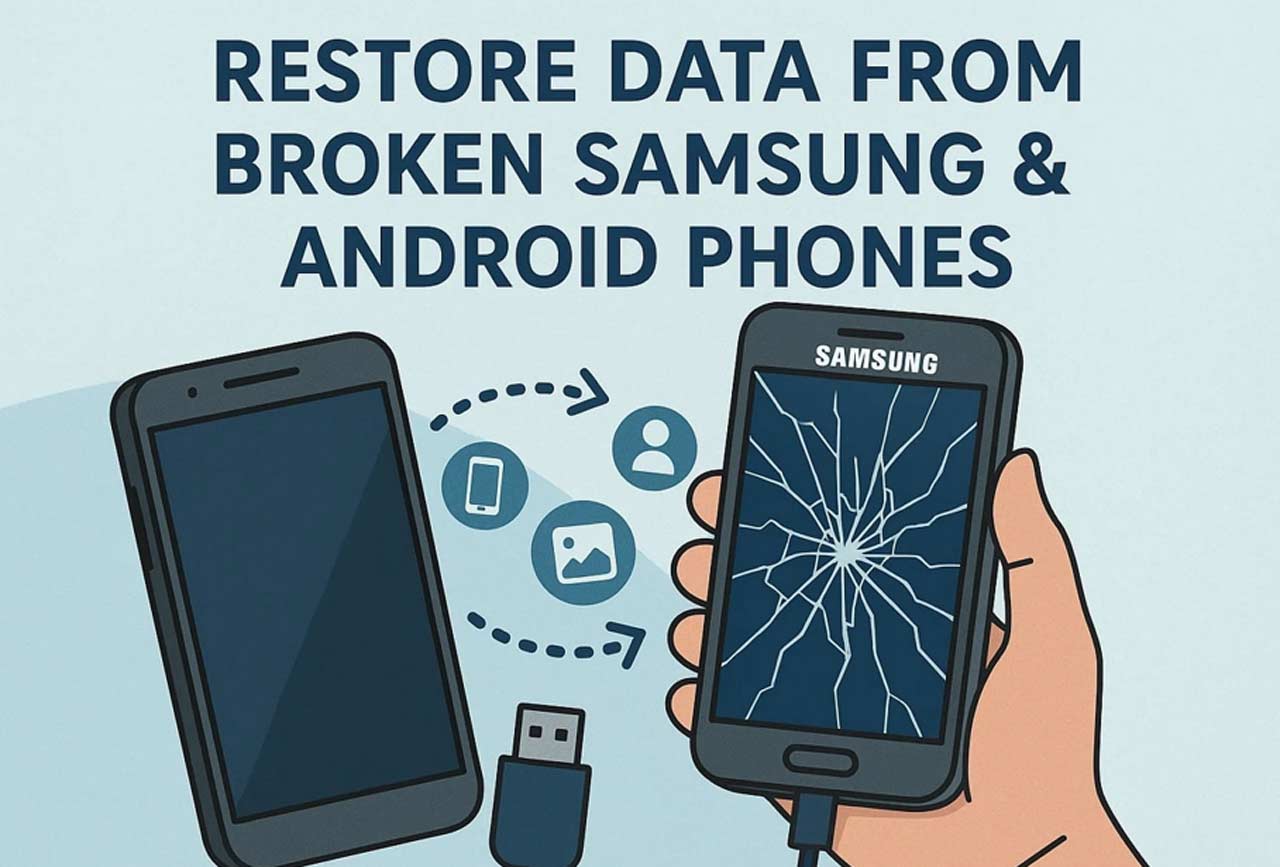
Part 1. How Dr.Fone Helps with Broken Devices?
Dr.Fone – Data Recovery (Android) offers simple tools that help users handle damaged phones effortlessly. It guides you through straightforward steps for accessing files on broken Android devices. Moreover, users can easily select Android as the target device type for focused recovery. The program then provides a dedicated option called Recover from Broken Phone to begin scanning. It also allows users to describe the device condition, such as a black or cracked screen.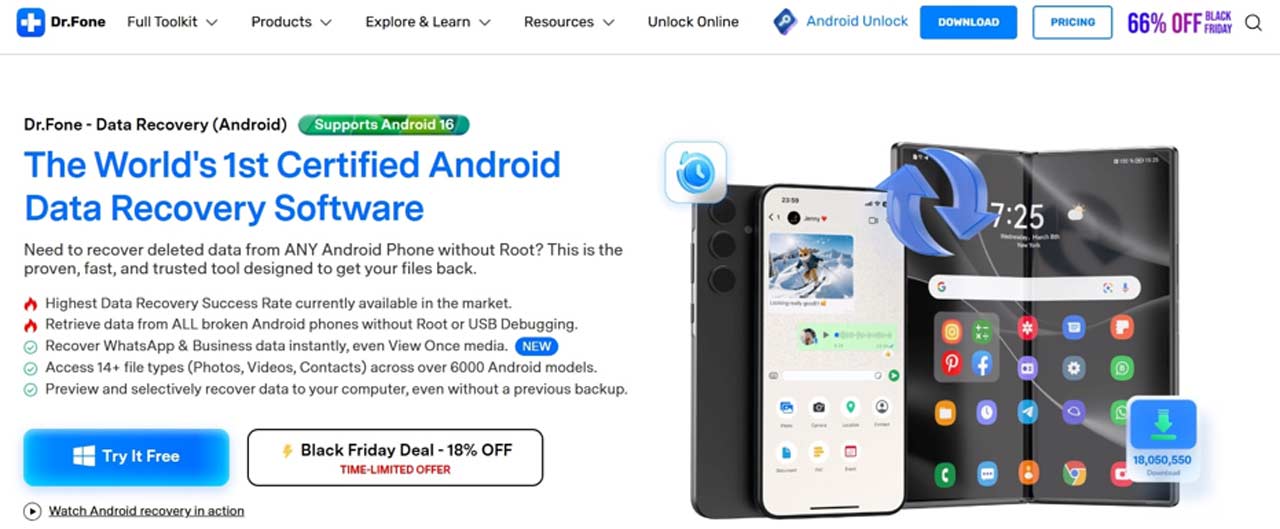
This feature is ideal for Samsung broken screen data recovery and similar Android issues. Besides, Dr.Fone supports multiple Samsung models that cannot display or power on properly. Besides, the complete process is shown on the fly to be more transparent and controlled. After the analysis is done, users are able to preview the recoverable data. Also, each file can be restored either directly to a device or safely saved on the computer.
Supported Devices and Data Types
Dr.Fone supports more than 6000 Android devices, including various Samsung and other brands. The tool is also compatible with Android 16 and older versions for effortless data restoration. Besides, users will be able to recover 14+ file types, including multimedia and messages.
Part 2. Preparation Before Data Recovery from Broken Android Devices
Before starting recovery, it is essential to prepare your device correctly and safely. So, these given tips help avoid errors when restoring damaged phone data:


- Battery Check: Make sure your phone has enough charge to avoid a sudden shutdown during recovery. It helps the tool read your device safely without unexpected interruptions.
- Cable Quality: Use a good USB cable to maintain a steady link between phone and computer. A stable cable prevents data drops and improves connection during the recovery task.
- System Check: Update your computer system and Dr.Fone software to the latest version available. This removes compatibility issues and ensures easy detection of the connected device.
- Mode Awareness: Understand the steps needed for special modes required during the process. Following the mode instructions correctly ensures the tool can detect your device.
- Network Disable: You can also turn off Wi-Fi during recovery to stop background interference. It prevents unwanted updates or syncs that may disturb broken Android data extraction.
Part 3. Simplified Tutorial: How to Recover Data from Broken Android Devices via Dr.Fone
The broken phone data recovery process with Dr.Fone is simple and easy to follow. It also gives clear on-screen instructions for every step to reduce confusion and errors. Even users with little technical knowledge can perform recovery safely with complete control and guidance. The given steps explain each stage clearly for a quick and successful data restoration experience:
Step 1. Access the Recover from Broken Phone Tool
When you navigate to the “Toolbox” tab, click the “Data Recovery” feature and then choose “Android.” After that, connect your phone to the computer and opt for the “Recover from Broken Phone” option.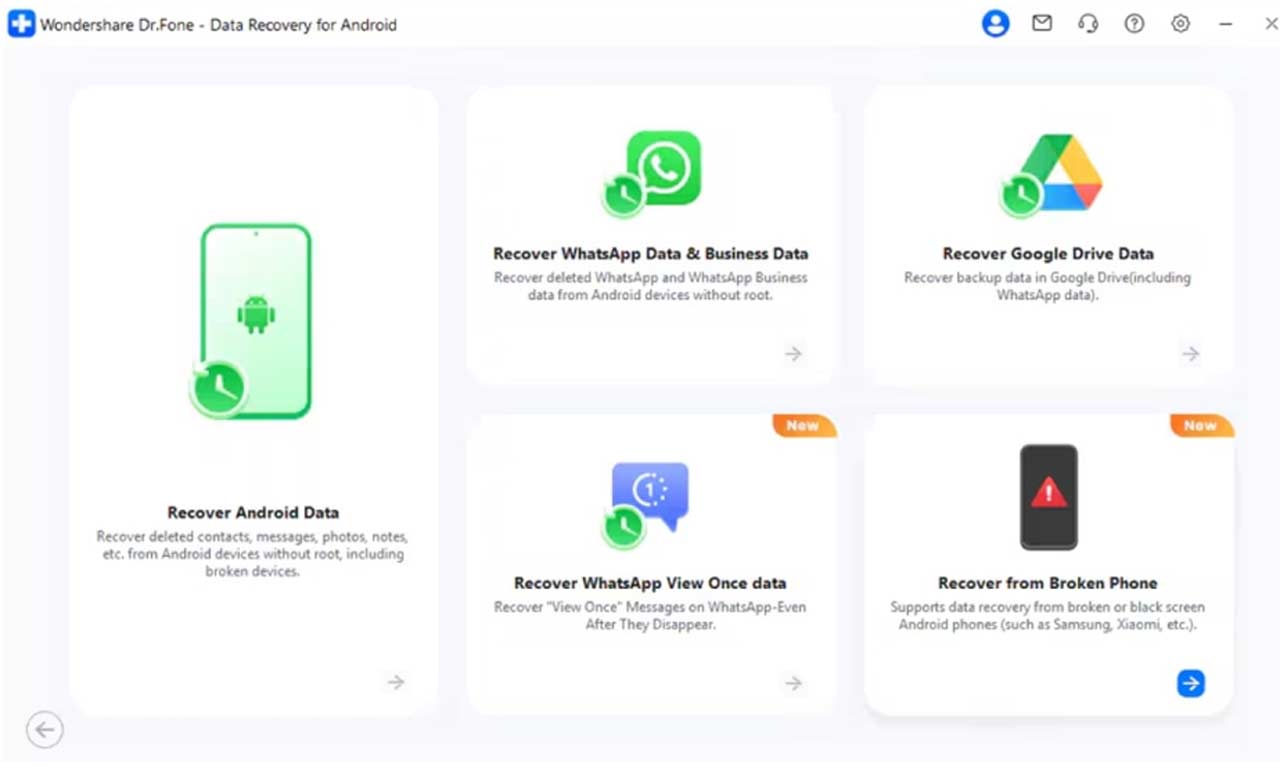
Step 2. Choose Your Phone Condition to Recover Data
You will then need to select options like “Display Still Work, But The Screen is Broken or Unresponsive” and hit “Next.” Upon seeing a prompt, press the “OK” button to move further.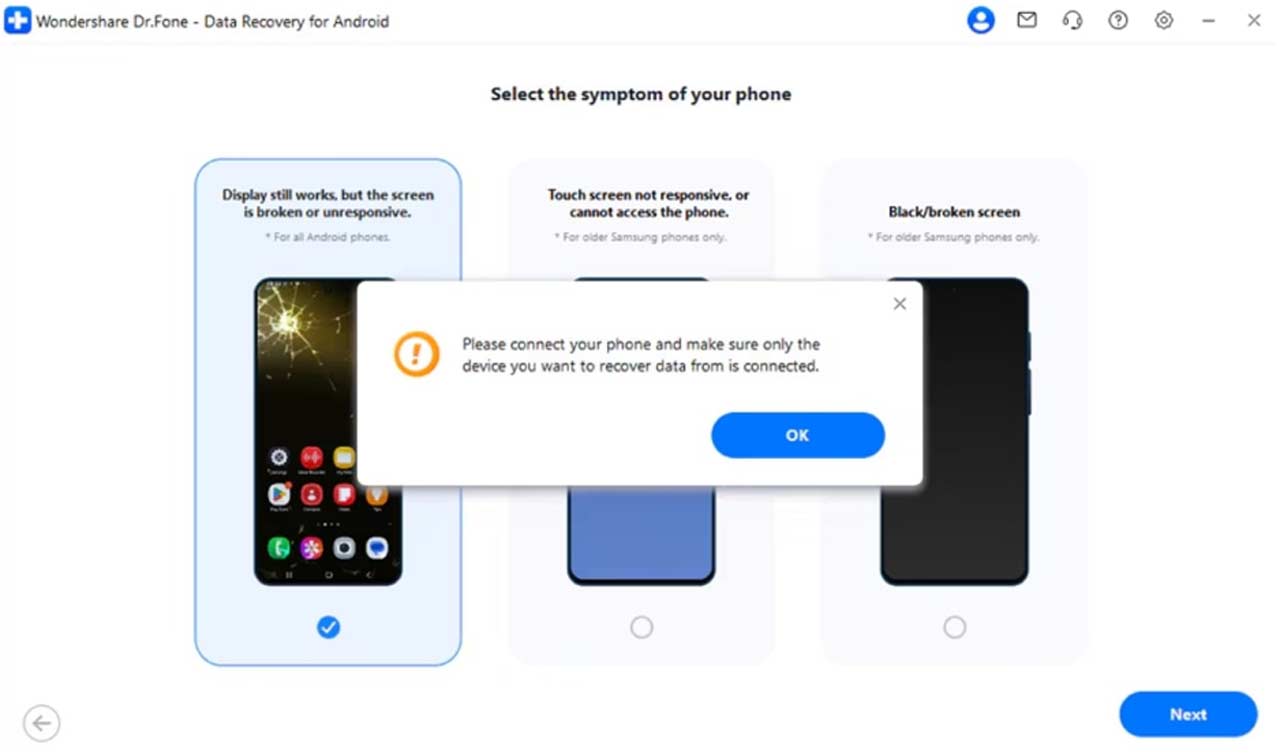
Step 3. Access and Restore Your Phone’s Data
The program will then initiate the installation of the necessary drivers for your device. When it is installed, press “Yes, It Works” to control and access your device data on your computer screen and restore it.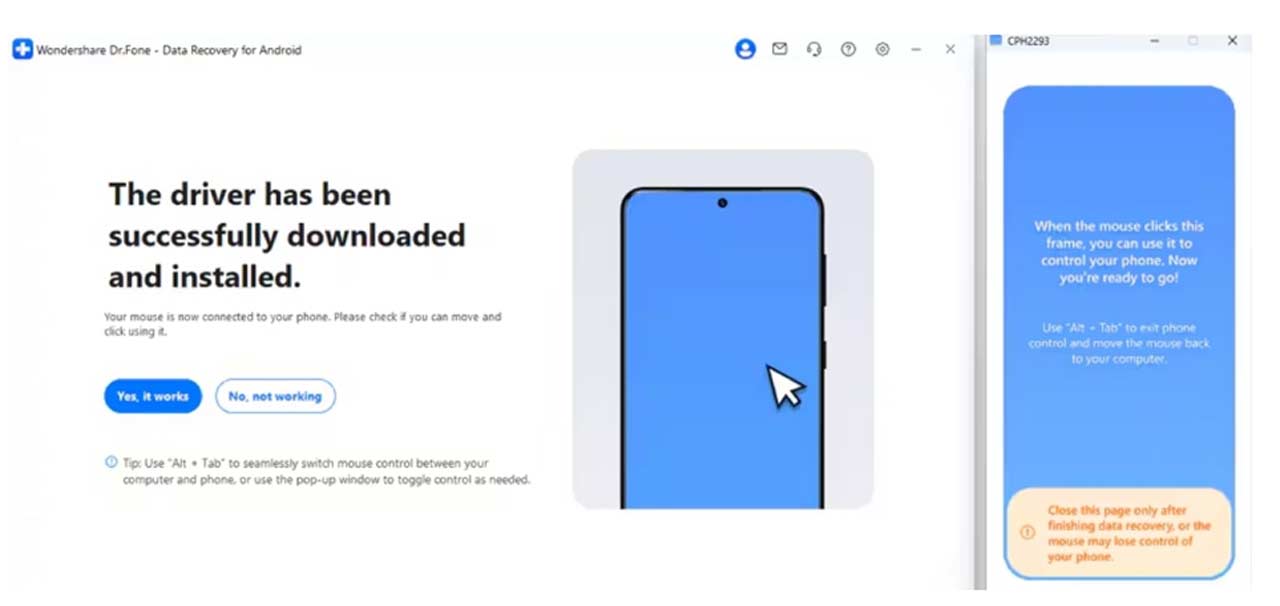
Part 4. Alternative Methods vs Dr.Fone Broken Phone Data Recovery
While Dr.Fone is designed for broken phone data recovery, some users explore other solutions. Common choices include cloud backup restoration or external Android recovery apps. Comparing these options helps understand why Dr.Fone provides a safer recovery:
| Features | Dr.Fone Broken Phone Data Recovery | Other Methods / Tools |
| Ease of Use | Simple interface with guided steps for beginners | Often complex with unclear instructions |
| Supported Devices | Works with 6000+ Android phones, including Samsung | Usually supports limited device models |
| File Types Recovered | Recovers 14+ types, including photos, videos, and messages | Often limited to basic file types |
| Data Preview Option | Allows preview before restoring files | Rarely available |
| Screen Damage Support | Recovers data from black or unresponsive screens | May fail if the screen is completely broken |
| System Compatibility | Supports the latest Android 16 and older versions | Commonly outdated or device-specific |
| Success Rate | Delivers high data recovery success through advanced scan | Unstable and often fails midway |
| Security and Reliability | Offers safe recovery with no data overwrite | Risk of data loss during manual steps |
Hence, Dr.Fone proves to be the most dependable choice for damaged or unresponsive Android devices. Its advanced scanning and broad compatibility make it stand out among competitors. For those wanting reliable and complete recovery results, Dr.Fone remains the effortless solution.
Conclusion
In summary, losing data feels stressful in situations where phones stop working or screens break. Broken phone data recovery tools help regain essential files safely and efficiently. Yet, Dr.Fone provides clear guidance with broad device support and fast scanning for secure restoration. Also, its preview feature ensures you recover exactly what you need without confusion. So, for reliable and complete results, choose Dr.Fone – Data Recovery (Android) for your device.