Android Data Recovery Apps vs. PC Software: Which Is Better for Recovering Lost Data?

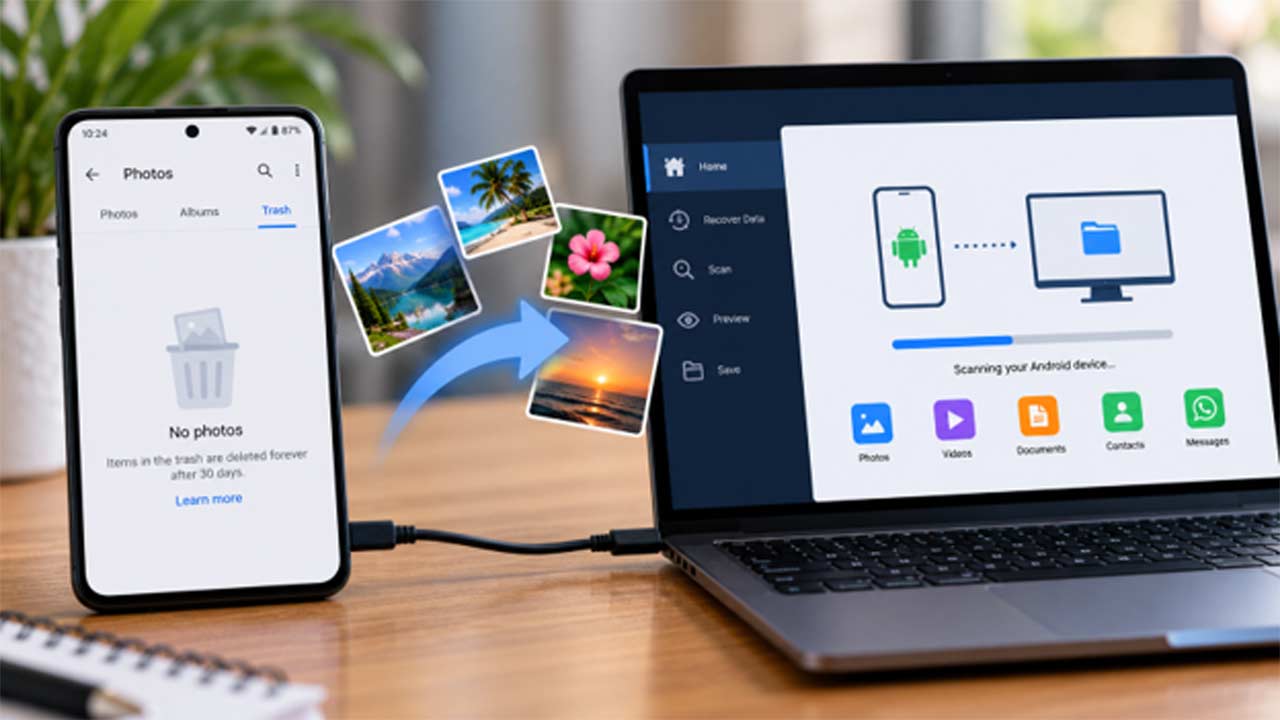
You delete a few photos from your Android phone, empty the Trash by mistake, and then realize those pictures were never backed up. Naturally, you head to the Play Store and look for an app that can bring them back.
But is installing another app on the same phone really the best move?
You can find Android recovery apps and PC-based recovery software, both claiming to help with lost files. The difference is how they work, what they can access, and what kind of recovery they support. Before you install anything, it helps to know what you’re dealing with.
What Can an Android Recovery App Actually Do?
A recovery app runs directly on your phone. Depending on the app, it may help you find existing copies of photos, cached images, or files stored in locations it can access.


That can be useful if you’ve lost a picture but another copy is still on the device. However, finding a thumbnail or cached image isn’t the same as recovering the original photo at its full quality.
Android also limits what apps can access. One app generally can’t browse another app’s private data whenever it wants. Root access can change some of those restrictions, but rooting isn’t a simple fix and comes with its own risks.
So, if an app promises to recover every deleted photo, message, and document with a single tap, take that claim with a grain of salt.
Why Consider Recovery Software for a PC?
PC-based recovery software takes a different approach. You install the program on a computer, connect your Android phone over USB, and follow the steps provided by the software.
One practical advantage is that you don’t have to install the main recovery program on the phone you’re trying to recover data from. That’s worth considering when the lost files are important and you want to avoid unnecessary downloads or installations.
Why does that matter? When a file is deleted, the chance of recovering it can depend on what happens to the storage afterward. New activity may reduce the chances of recovery in some situations. Installing an app doesn’t automatically overwrite your deleted photos, but avoiding unnecessary activity is still a sensible precaution.
A PC-based tool may also provide a more convenient way to scan for supported file types and preview the results on a larger screen. What it can actually recover, though, depends on the phone, Android version, available permissions, and recovery method.
Connecting a phone to a computer doesn’t remove Android’s security restrictions. That’s an important point to remember.
Android Recovery Apps vs. PC Software
Here’s a quick look at how the two options compare.
| What you’re looking at | Android app | PC software |
| Installation | Installed on the phone | Installed on a computer |
| Convenience | Handy when you don’t have a computer | Requires a computer and USB connection |
| Checking accessible files | May help find existing copies or cached images | May scan for supported data types |
| Access to protected data | Limited by Android permissions unless additional access is available | Also limited by Android permissions and the tool’s capabilities |
| Best use case | Basic checks and accessible files | A guided recovery attempt using a supported desktop tool |
Neither option wins in every situation. If your photos are still in Google Photos Trash, you don’t need recovery software at all. If the files were permanently deleted from a modern Android phone, neither a mobile app nor a PC program can promise to bring them back.
Can PC Software Recover Deleted Files Without Root?
Yes, some Android recovery tools work without requiring you to root the phone. But there’s a difference between working without root and having unrestricted access to the device.
Android protects internal storage and app data. Modern phones also use encryption, which can make previously deleted data inaccessible. A tool’s ability to recover files depends on the recovery method it supports and the access Android allows.
You may also come across instructions asking you to enable USB debugging. This setting allows certain types of communication between your phone and a computer. It doesn’t automatically give the computer access to every private database or deleted file.
Before trying any tool, check that it supports your phone model, Android version, and the data you’re trying to recover. Don’t assume that a method that works on one phone will work on every Android device.
What If You Want to Try PC-Based Recovery?
If you’ve already checked your backups and the missing files aren’t available elsewhere, a desktop recovery tool may be worth trying.
For example, Stellar Data Recovery for Android runs on a Windows PC and connects to a compatible Android phone over USB. It supports scanning for several types of data, including photos, videos, documents, contacts, SMS, call history, and WhatsApp-related data.
You don’t need to root your phone for its supported recovery workflow. You’ll still need to follow the software’s instructions to connect and authorize the device.
The basic process is straightforward:
1. Install Stellar Data Recovery for Android on your Windows PC.
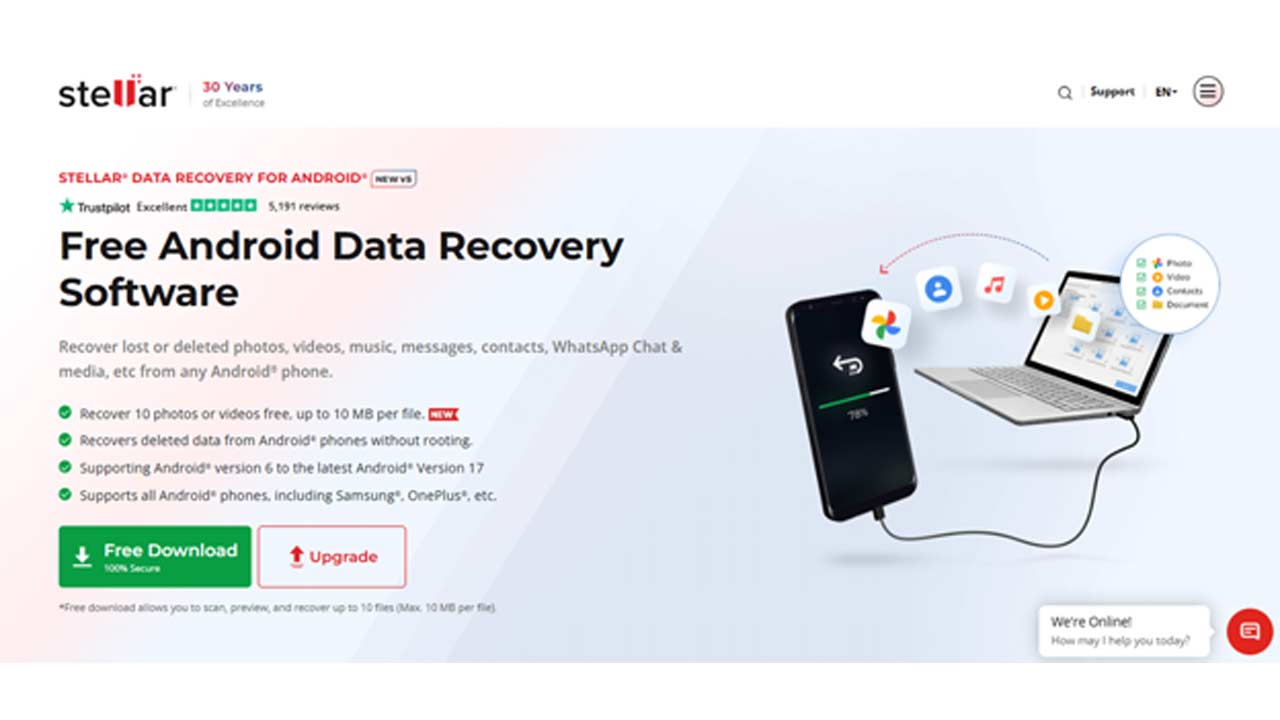
2. Connect your phone using a USB cable.
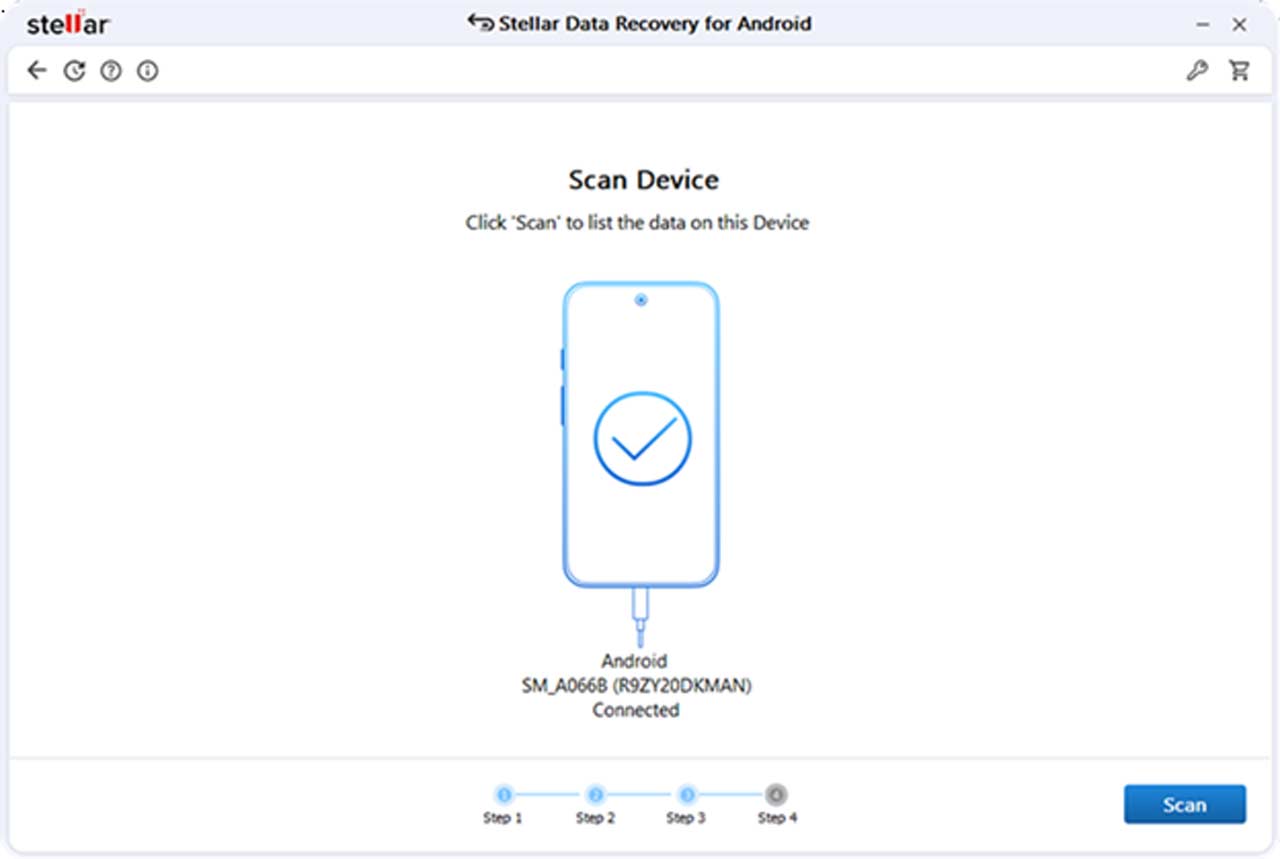
3. Follow the on-screen instructions to authorize the device.
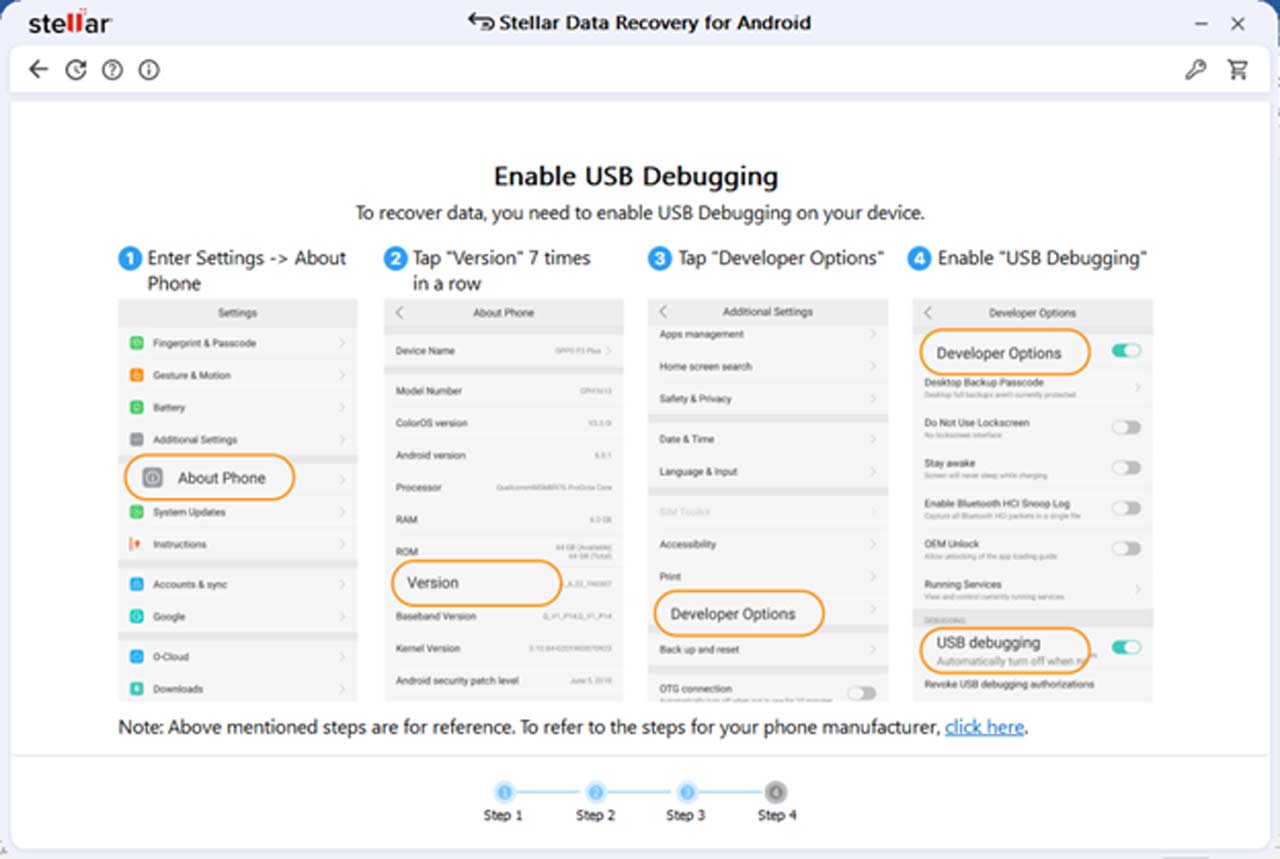
4. Run a scan for supported data types.
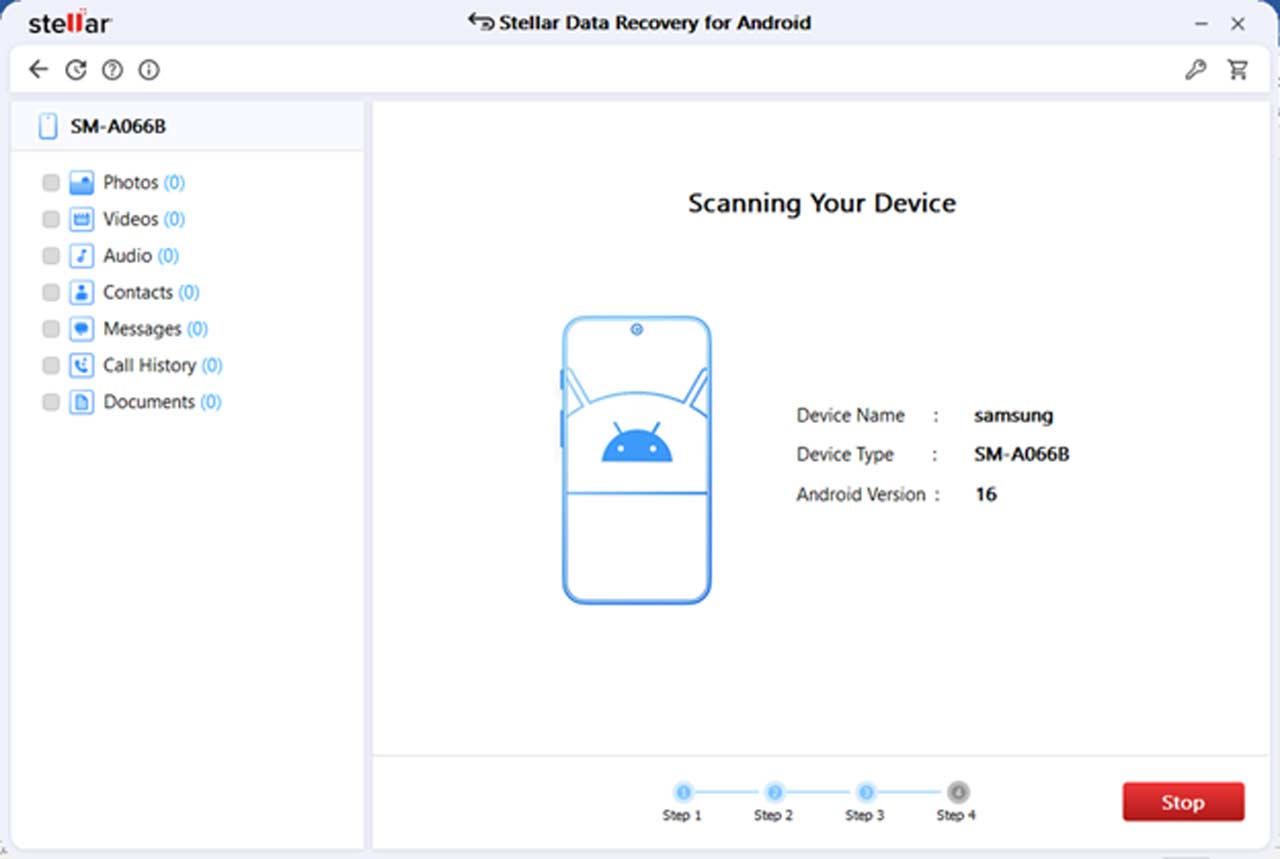
5. Preview the results to see whether the files you’re looking for appear.
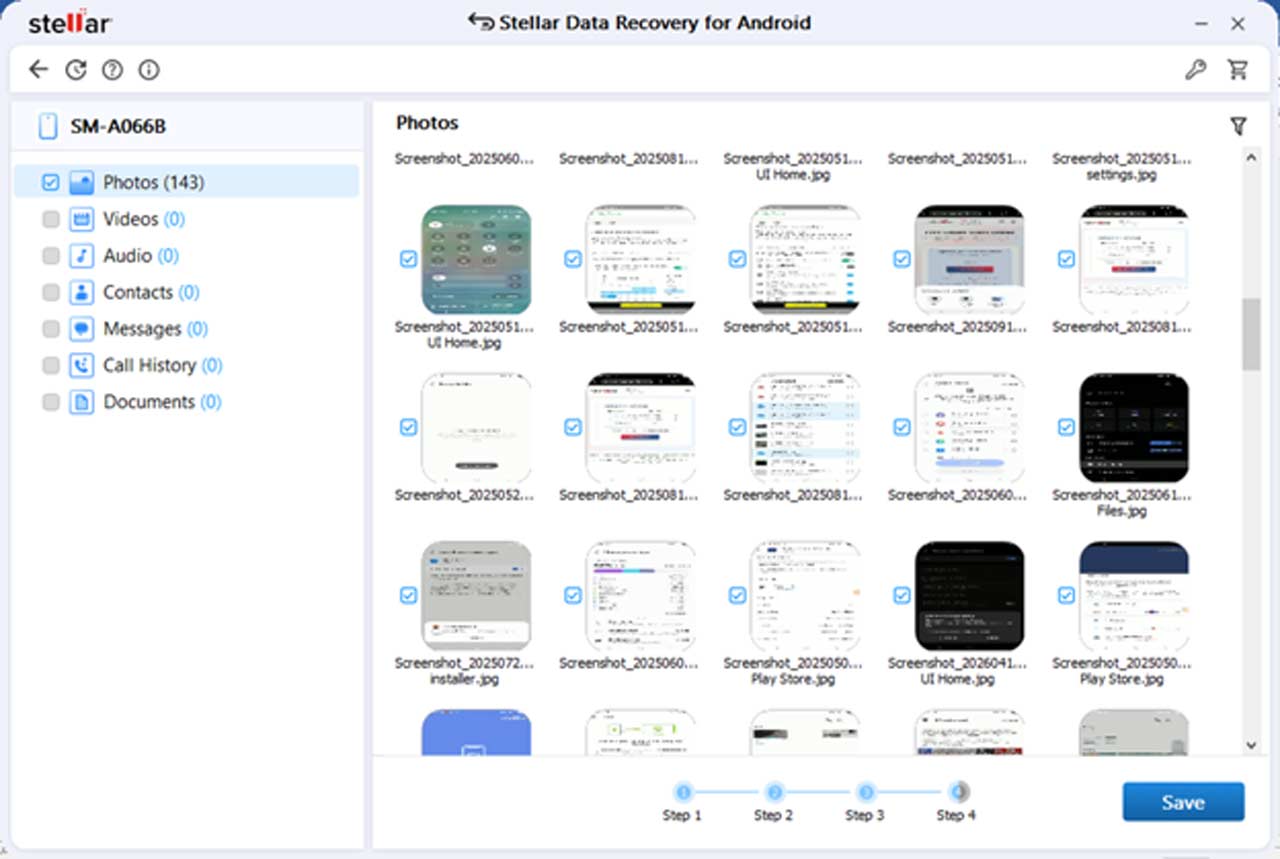
6. Follow the recovery instructions if the files are available.
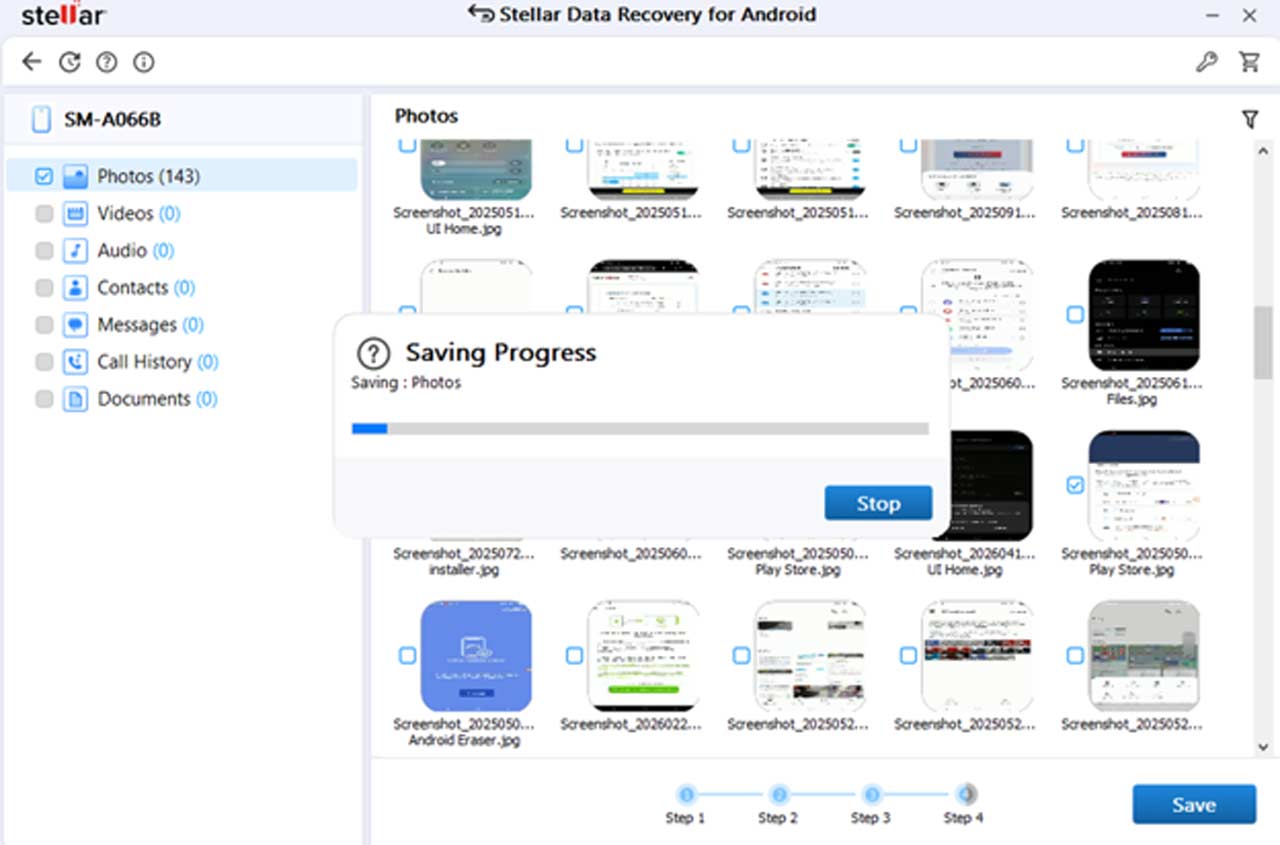
The free version allows you to scan and preview results and recover up to 10 photo or video files, with a maximum size of 10 MB per file.
Keep your expectations realistic, though. A scan may not find the missing files, and a preview doesn’t guarantee that every file can be recovered successfully. If the pictures existed only in Google Photos and were permanently deleted from the cloud, scanning your phone won’t bring them back.
Before You Try Any Recovery Tool
There’s one thing worth doing before you install an app or connect your phone to a computer: make sure the files are actually missing.
Open Google Photos and check the correct account, Trash, and backup status. If you’re using Samsung Gallery or another gallery app, check its Recently Deleted folder too. Look through Google Drive, messaging app folders, and any computer or external drive where you might have saved copies.
If the files aren’t backed up and were deleted from the phone, avoid taking lots of new pictures or downloading unnecessary files while you decide what to do next.
Also, don’t rush into rooting or factory-resetting the phone. Depending on the device and procedure, unlocking the bootloader can erase data, and rooting introduces additional risks. Neither guarantees successful recovery.
Frequently Asked Questions
Are Android recovery apps safe to use?
That depends on the app and the permissions it requests. Check the developer, reviews, privacy policy, and requested access before installing anything. Be cautious of apps that promise guaranteed recovery or ask for unnecessary permissions.
Is PC software always better than an Android recovery app?
No. A mobile app may be enough to find an accessible copy of a photo, while PC software may be more convenient for a guided scan of supported data. Neither can bypass every Android storage restriction.
Can I recover deleted photos without a backup?
Sometimes. If the original files were stored locally and remain recoverable, a compatible tool may find them. If the data is no longer accessible because of encryption, overwriting, or other storage restrictions, recovery may not be possible.
Will turning on USB debugging recover deleted files?
No. USB debugging allows communication between a phone and a computer for supported operations. Enabling it doesn’t restore deleted data or guarantee that recovery software can access it.
Should I root my phone to recover data?
Don’t make rooting your first step. It carries risks, and some bootloader-unlocking procedures erase data. Check backups and less invasive recovery options first.
So, Which Option Should You Choose?
If you’ve lost a few pictures, start by checking your Gallery, Google Photos, and other backups. You may find that the files are still available without installing anything.
If they’re genuinely missing from the phone, you can consider a recovery app or PC-based software that supports your device and data type. A desktop tool offers a different workflow, but it isn’t a guarantee of better results.
And if you haven’t lost anything yet, take a few minutes to set up regular backups. It’s much easier to keep a second copy of your photos than to try to recover them after they’ve disappeared.